Intro and outro edits
Choose the drop, set 8, 16 or 32 bars, and build a clean mix-in or mix-out.
In your browser · nothing to install
Half your collection never gets played, because those tracks start cold and there is nowhere to mix in. Pick the point where you want the record to drop — CratePrep builds the intro for you, out of the track's own audio, with the vocal lead-in over the top so it flows.
Try it now
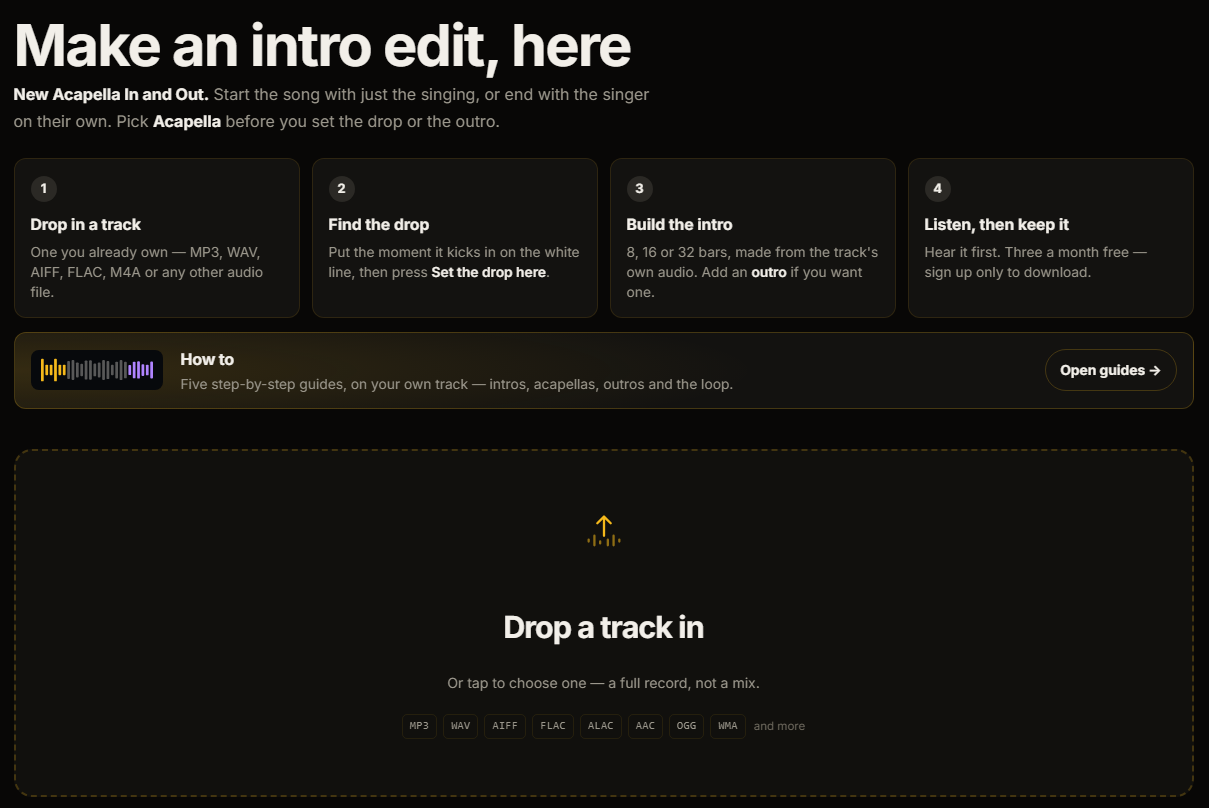
No account, no install. Pick where the record should drop and you will hear the intro built out of the track's own audio, with the vocal walking in over the end of it. Sign up only when you want to keep the file.
Drop in a track you already own
Choose where it should drop
Hear the edit, then keep it
Create an intro or outro edit in your browser, then preview it before saving.
The editor
Drop in your track, choose an edit, and stay in control of the BPM, grid, loop, vocal and final preview.
Choose the drop, set 8, 16 or 32 bars, and build a clean mix-in or mix-out.
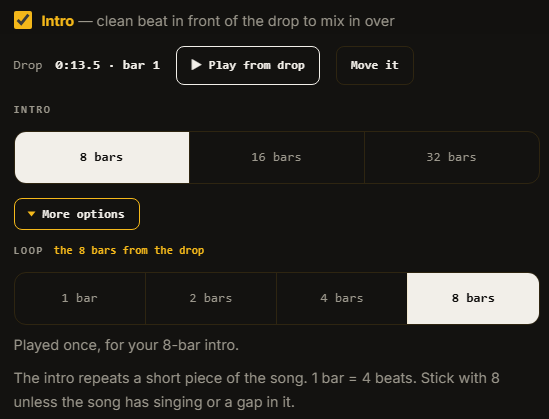
Separate the track into parts and decide what carries through each transition.
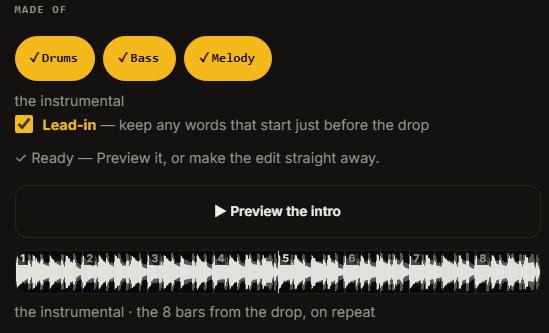
Choose where the loop comes from, adjust its length, and audition the join before rendering.
Why you need it
Pools edit what is current. Intro versions get cut for new releases while they are being pushed, and the back catalogue almost never gets the treatment — so the older records in your crate, the ones that would actually go off, are exactly the ones with no intro version anywhere.
Until now, the only fix was a DAW and an hour a track.
What it does
Everything that made this a studio job is handled for you — the separation, the phrasing, the tiling and the alignment. What is left is the one decision only you can make: where the track should come in.
Finding the downbeat, pulling the instrumental out, tiling it to length and lining the drop up to the grid — that is the whole job, and it happens on one click. You choose where the track should come in. CratePrep does the rest.
It lays the vocal pick-up over the end of the run-up, so the track walks in instead of appearing. That is the detail that separates a proper intro edit from a track with a loop stuck on the front.
The bars at the drop are the usual choice, but if they are too busy, or the vocal will not come off cleanly, there are often better eight bars elsewhere in the record. Audition each one with the vocals already stripped before you build anything.
Going through a crate and spotting the tracks that need an intro is a different job from making them. Star them as you find them and the prep list brings the lot back together, across every library.
Your library
CratePrep opens the crates out of whichever DJ program you already use and shows them nested the way that program does — with artist, title and BPM from the library itself, so you are picking tracks, not filenames.
Crates and subcrates straight from the Serato library, including Serato 4.
Opens the Rekordbox database and lists your playlists with their real track counts.
Your playlists and browser folders, nested the way VirtualDJ nests them.
Your Engine library and playlists, with the beatgrids Engine already worked out.
Nothing is ever written back to your library. On Traktor or djay, drag and drop works the same — you just pick the file yourself.
How it works
Click it in your crate list, or drag the file in. Artist, title and BPM come from your library.
Find the moment it kicks in on the waveform, set the drop there, and choose 8, 16 or 32 bars. That is the only decision you make.
Hear just the join before you commit, then export the edit wherever you like and let your DJ software find it.